





Migrating from another e-commerce platform like WooCommerce or BigCommerce to Shopify often results in broken links. Product URL structures change, collections are reorganized, and existing links from Google, emails, and ads can suddenly start returning 404 errors.
To fix broken links after migrating to Shopify, you need to first identify which old URLs are still being hit and create permanent (301) redirects to the correct new pages.
Why migrations cause broken links
Broken links after a migration are normal. They usually happen because:
- URL structures change between platforms. For example, a product URL on WooCommerce might look like:
/product/blue-cotton-shirt/while the same product on Shopify becomes/products/blue-cotton-shirt - Product or collection handles are renamed
- Some pages are not migrated at all
- Old platform-specific paths no longer exist
Search engines and customers still try to access those old URLs until they are redirected.
What you need before you start
Before fixing broken links, make sure you have:
- Access to your Shopify admin
- A list of old URLs (or a way to discover them. More on this in Step 1.)
- A clear idea of where those URLs should send visitors now (the new links on your new Shopify Store)
Step 1: Find broken links on your Shopify store
Start by identifying which URLs are returning 404 errors.
Common sources include:
- Google Search Console: Shows broken URLs Google is actively crawling
- Old sitemaps from your previous platform
- External links from blogs, ads, or email campaigns
- Live visitor traffic hitting 404 pages
Focus on URLs that are still receiving traffic. These matter the most to your customers and to SEO.
Step 2: Decide where each broken link should redirect
Not every broken link should be treated the same way and some should not be fixed at all.
Use these rules:
- Old platform product URL → new Shopify product URL: Redirect directly to the matching product on Shopify
- Old platform category URL → new Shopify collection URL: Redirect to the closest equivalent collection
- Discontinued product or category: Redirect to the most relevant parent collection or alternative product on Shopify
- No meaningful Shopify replacement: Do not create a redirect just to avoid a 404
Step 3: Create redirects in Shopify
Option 1: Shopify’s built-in redirects (small migrations)
Shopify supports one-to-one URL redirects directly in the admin interface. You can find this by going to: Content > Menus > URL Redirects
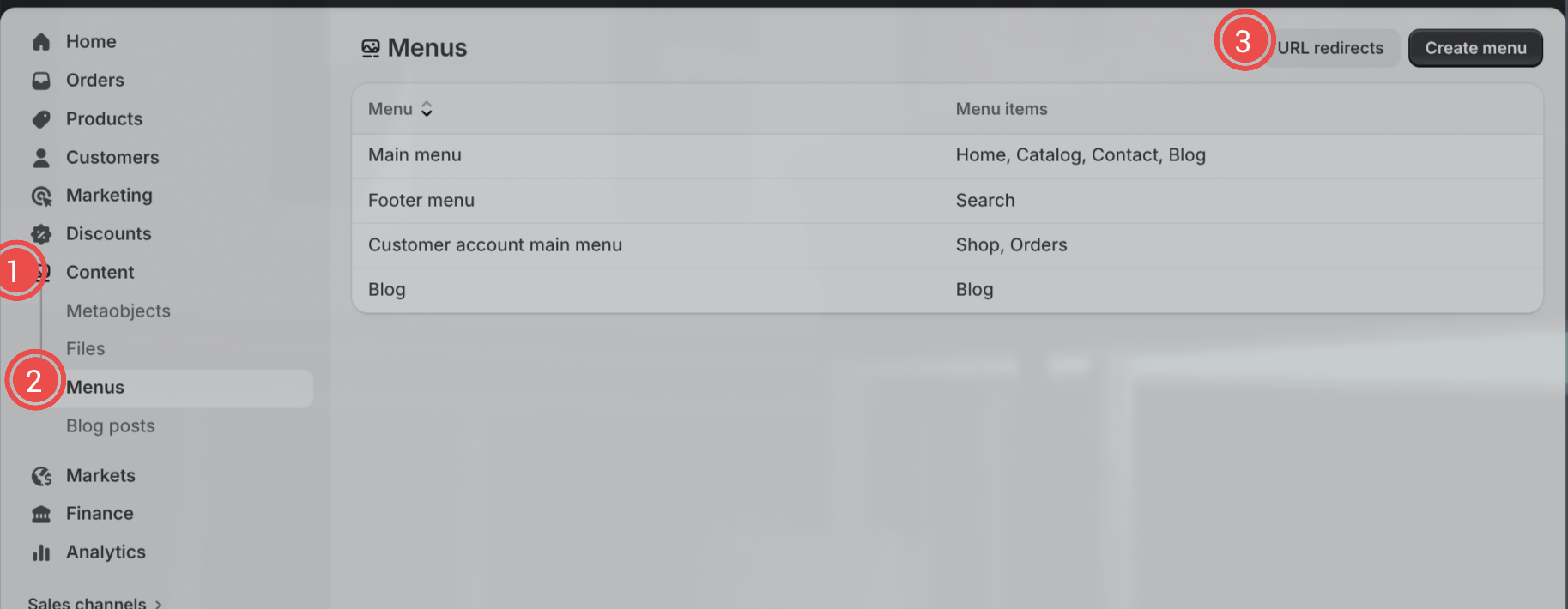
This works well when:
- You have a small number of broken links
- Each URL needs a specific destination
Limitations:
- No pattern matching or wildcards are supported
- Manual process for each broken link and redirect
- Not ideal for large migrations
Option 2: Bulk and wildcard redirects (large migrations)
Large migrations usually involve hundreds or thousands of broken URLs that follow patterns.
In these cases, merchants typically:
- Upload redirects in bulk using CSV files
- Use wildcard rules to redirect many URLs with a single pattern
Some redirect apps also monitor new 404s automatically and help identify redirect patterns based on real traffic. For example, Redirect Ninja helps merchants track broken links in real time, apply wildcard redirects safely, and create permanent 301 redirects directly from Shopify admin.
Common migration mistakes to avoid
Redirecting all broken URLs to the homepage or to any other single page
- Using temporary (302) redirects instead of permanent (301)
- While this might get the user to the correct page it will not pass on the SEO value from the broken link to the new link
- Ignoring long-tail URLs that still receive traffic
- Redirecting to another redirect.
- This is handled by Shopify in most cases and will give you an error when you try to save a redirect chain or loop.
Troubleshooting common issues
My redirects work in the browser but not in search results
Search engines take time to recrawl redirected URLs. This is normal and can take a while.
I keep seeing new 404s weeks after launch
Old links surface over time. Ongoing monitoring is part of post-migration cleanup.
Some old URLs don’t match any obvious pattern
Handle these individually. Not everything should be wildcarded.
Checklist: fixing broken links after a Shopify migration
- Identify broken URLs with real traffic
- Decide the most relevant destination for each
- Create permanent (301) redirects
- Monitor new 404s after launch
FAQ
Will broken links after migration hurt my SEO?
Yes, if they are not redirected. Proper 301 redirects preserve rankings and link equity. Do not use temporary 301 redirects as these do not pass on SEO value.
How long should I keep redirects active?
In most cases, permanently. Old URLs can continue to receive traffic for years.
Can I fix broken links after launch?
Yes. Redirects can be added at any time, even weeks or months after migrating.
Do I need to redirect every old URL?
No. Focus on URLs that receive traffic or have SEO value, as these are the most important.


.png)