
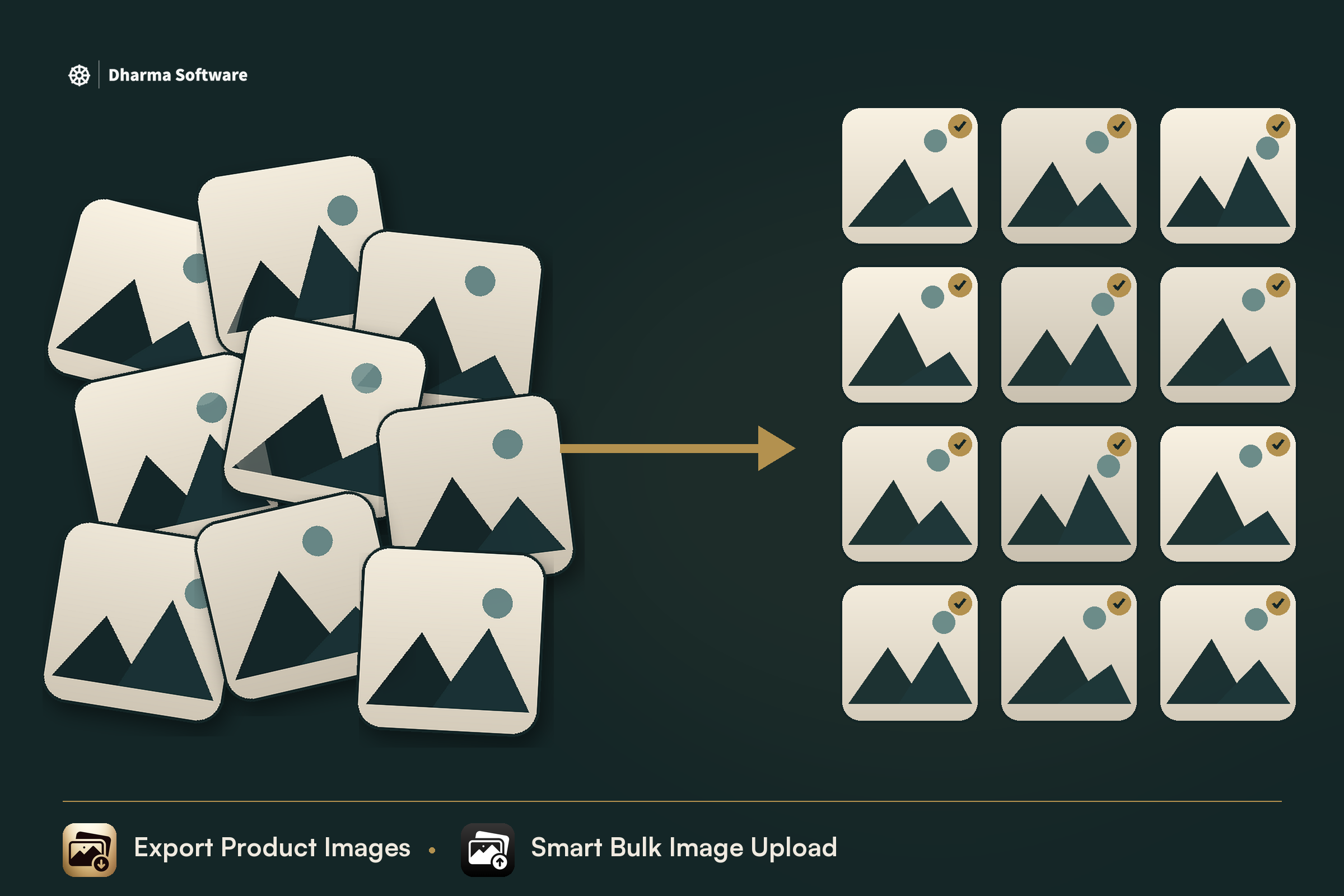
Shopify has no way to bulk edit your product photos. You can bulk-edit titles, prices and tags across thousands of products, but not the images themselves. The admin takes them one product at a time. A CSV import wants a public URL for every image and a perfectly built row for every variant. So the moment you want to change 2,000 photos at once, whether that's a crop refresh, a format clean-up or a move between stores, you hit the same wall. The files have to leave Shopify, get edited somewhere else, and come back onto the right products.
That whole loop is really two jobs: getting the images out, and getting them back in. Usually two different tools cover each end, and the thing holding it together is the file name.
Why bulk image work is hard on Shopify
The slow part usually isn't the upload. It's working out which of 5,000 files belongs to which product after they've been edited.
The standard shortcut is to name every file after its SKU, like AB-1234.jpg, and let an app match them for you. That works well when the names are clean. They rarely are. Photos turn up from different suppliers, different photographers and years of history, and renaming thousands of files by hand can take longer than the upload itself.
So two things matter. Whatever you do in bulk needs a naming convention that survives the round trip. And you want to see the match before anything gets written to your store, because a wrong image on 400 live products is worse than no image.
Getting the images out with CS ‑ Export Product Images
CS ‑ Export Product Images pulls your store media into a ZIP you can work on locally. It's from Craftshift, an established Shopify app developer, it carries the Built for Shopify badge, and it's been on the App Store since March 2024. When we looked in November 2026 it sat at 4.7 from 34 reviews.
It exports product images, videos and 3D models, plus a Content > Files export for the rest of the library. That last one covers files used by metaobjects, like swatches and icons, and files nothing uses at all. Filters cover status, collection, date and vendor, so you can export only the products you're actually changing.
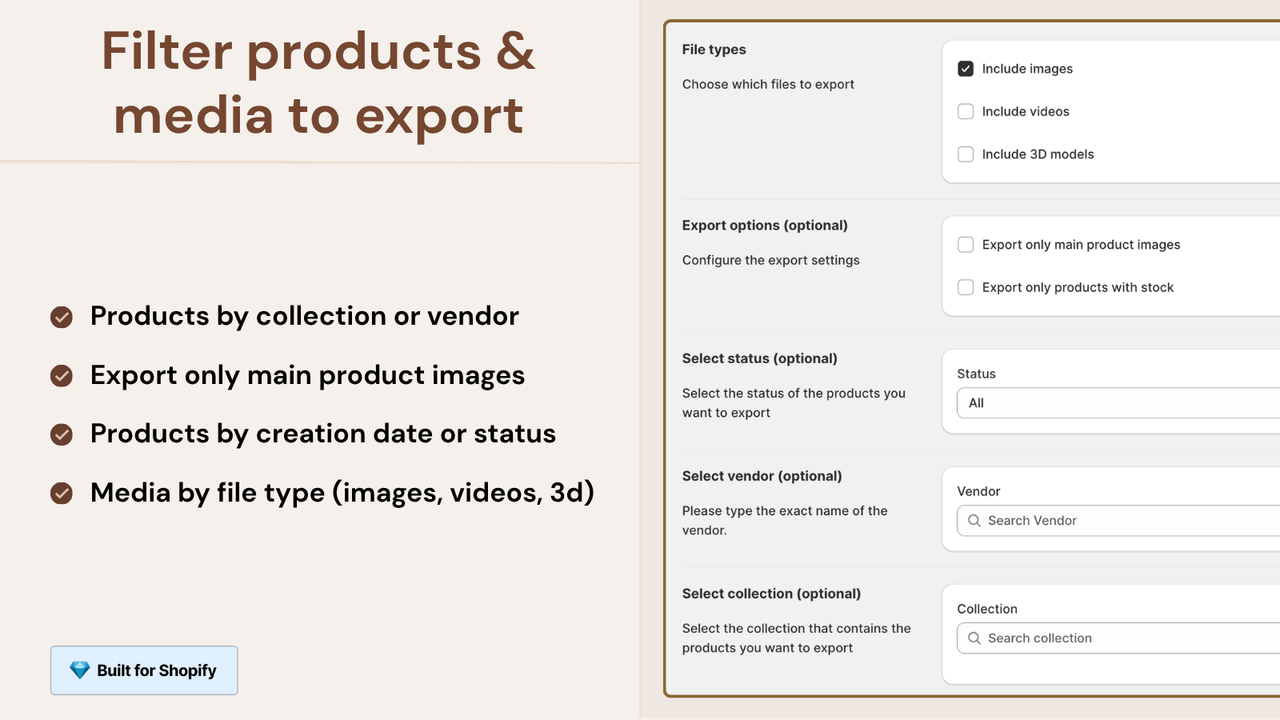
Names and folders are the part that matters for a round trip. There are around ten file name formats, and the one you want here is SKU_position, which gives you something like TSHIRT-BLK-M_1.jpg. Each file carries the SKU of its variant plus the image order. Folders can be split by product, file type or upload month, and you see the final file names in a preview before anything downloads. Big exports run in the background and email you when the ZIP is ready, with a seven-day download link.
It's read-only, so it can read your files and metaobjects but can't edit or delete them. You'll find the app at storemediaexporter.com.
Editing them offline
Unzip, edit, and leave the file names alone. Don't touch the SKU part or the number, because that's what reattaches the file on the way back in. Keep to jpg, jpeg, png, webp or gif, and convert anything else while you're editing.
One habit worth building: run a full export first, before you change anything, even if you plan to replace the lot. It costs one run, and you'll be glad it exists the day a batch edit goes sideways.
Getting the images back in with CS ‑ Smart Bulk Image Upload
CS ‑ Smart Bulk Image Upload does the return trip. It's been on the App Store since December 2020, holds a 5.0 from 111 reviews as of November 2026, and carries the Built for Shopify badge. Same developer as the exporter, and the polish shows.
The whole thing runs in two phases, and keeping them apart is what makes it safe to experiment with. Matching is read-only. The app lists the images in your folder, loads your catalog and pairs them up, and you get a preview of every match and every non-match. Nothing touches your store until you press upload.
Put the photos in one folder in Google Drive or Dropbox. The app only reads from your cloud storage, and it never renames, moves or deletes anything. One difference worth knowing: Google Drive lists only image files, while Dropbox lists every file in the folder, so keep stray CSVs and PDFs out. Subfolders aren't scanned either, just the folder you pick.
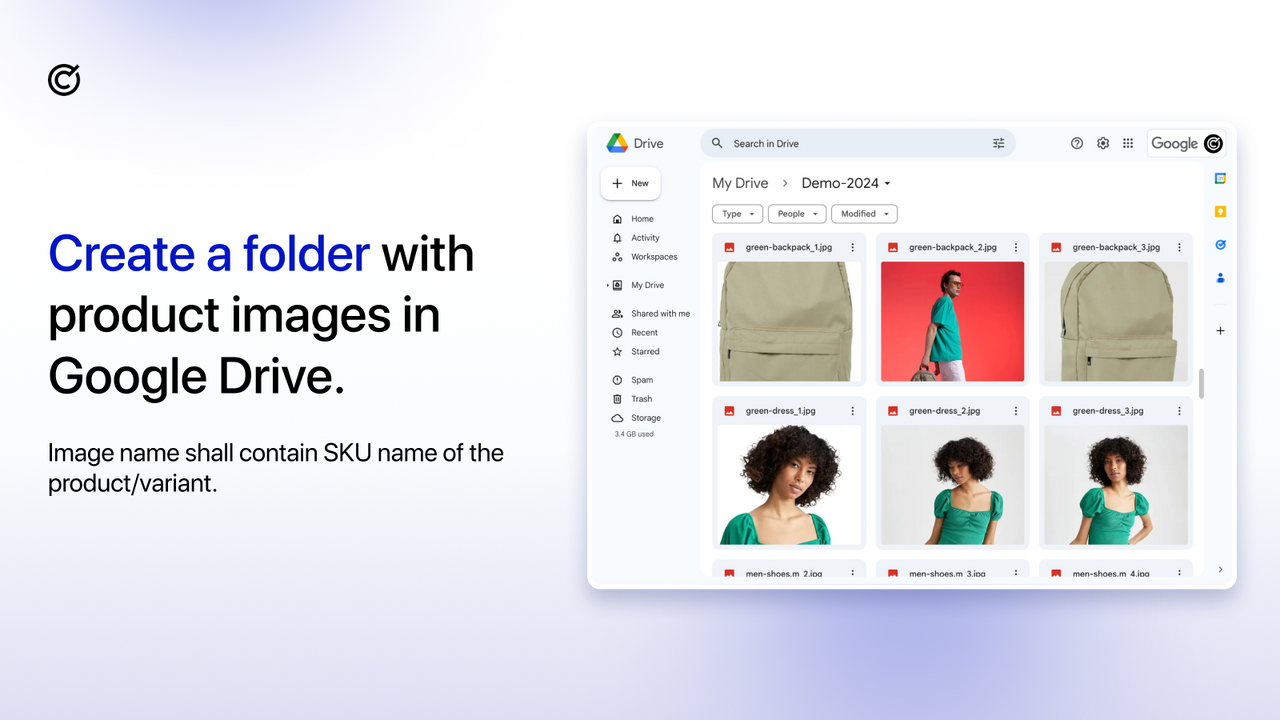
Then choose what to match on: SKU, barcode, product title or a metafield. If your names are messy, turn on AI matching, which is still in beta.
Worth being precise about what that AI does, because they're careful about it themselves: it reads file names, not the pictures. It works out that cct_navy_01.jpg is probably a navy variant, the way a person would, and it leaves anything it isn't confident about unmatched instead of guessing.
Every pairing then shows up in a preview with its thumbnail, file name, variant and position, and matching is read-only, so you can run it as many times as you like. When it looks right, you press upload and follow the job live; you get an email with the full log when it finishes.
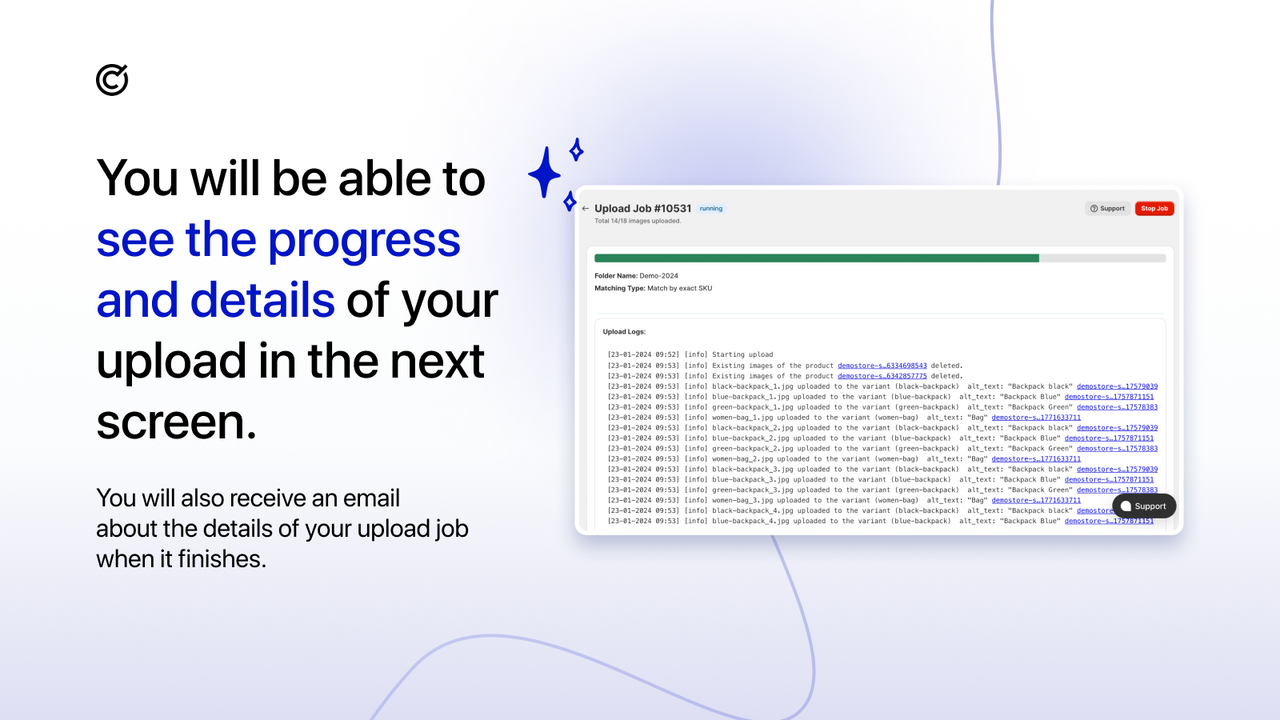
A first run is best kept small: a folder of 10 to 20 images, one or two test products, and "don't replace existing images" switched on. The free plan covers 25 uploaded images in total, and matching is unlimited and free, so you can rehearse the whole loop before you spend anything.
When you do commit, you can replace the existing gallery or add the new images after the old ones, and it handles alt text and resizing for images over 20 MB or 20 megapixels.
Pricing is on bulkimageupload.com. Free covers up to 25 images with every matching type, unlimited previews and alt text. Paid plans give you unlimited uploads and run $69 on Basic, Grow and lower, $99 on Advanced, and $149 on Plus.
Putting the two together
Export with CS ‑ Export Product Images using SKU_position and no subfolders. Edit the files and leave the names alone. Drop them in one Google Drive or Dropbox folder. Upload with CS ‑ Smart Bulk Image Upload, match by SKU, and read the preview before you commit.
Both apps list each other under "Works with" on the App Store, and the file name is what passes between them.
The SEO angle
Bulk image work is quietly an SEO job too, and it's the bit that overlaps with what we usually write about.
Alt text is the obvious one. It's what search engines and AI answers read when they describe an image, and it's what screen readers announce. It's also the thing nobody does for a whole catalog by hand, which is exactly why bulk alt text is worth having. Descriptive file names help a little, and they happen to be the same names you're already using to match. Size matters as well: oversized images slow every product page down, so a format and size clean-up is a speed win as much as a tidiness one.
And if you're partway through a migration, the images need to land on the pages your redirects now point at. A redirect that recovers a click onto a page with no photo doesn't recover much. That's the other half of a migration, and our guide to fixing broken links after a Shopify migration covers it. If you'd rather hand that half off, Migration Recovery finds every broken URL a migration left behind and shows what the lost traffic was worth.
When you don't need either app
If your catalog is small, your file names are already clean, and you're changing a handful of photos, the admin is fine. Bulk tooling earns its fee once the catalog gets into the hundreds and the edit is a batch rather than a one-off.
FAQ
Can I bulk upload product images to Shopify?
Not with Shopify's own tools. The admin takes images one product at a time, and a CSV import needs a public URL for every image and a correctly built row for every variant. CS ‑ Smart Bulk Image Upload is built for exactly this: you put the photos in a Google Drive or Dropbox folder, and it matches each one to the right product or variant.
Is Smart Bulk Image Upload free?
Part of it. The free plan covers up to 25 uploaded images in total, with every matching type, unlimited previews and alt text. Matching stays free and read-only, so you can run it across your whole catalog before paying anything. Unlimited uploads start at $69 a month. More at bulkimageupload.com.
How does it match photos to products when my file names are messy?
You choose what to match on, and SKU, barcode, product title and metafield are all options. If the names are inconsistent, turn on AI matching (still in beta). It reads the file names the way a person would, only ever picks from products already in your store, and leaves anything it isn't confident about unmatched instead of guessing.
Does it replace my existing product images?
Only if you tell it to. You choose between replacing the gallery and adding the new images after the old ones. The first time you test a replace, switch on the setting that keeps the old files in Content > Files, so nothing is lost.
How do I bulk edit Shopify product images?
Shopify has no bulk editor for the image files, so the usual route is export, edit, upload. Export the images named by SKU, edit them on your computer, then put them back matched by SKU. The file name is what ties the two ends together.
How do I export all my Shopify product images at once?
CS ‑ Export Product Images pulls them into one ZIP, with filters for status, collection, date and vendor and around ten file name formats, including SKU_position. It covers product images, videos and 3D models, plus the Content > Files library. The free plan covers 100 files a month. More at storemediaexporter.com.
Try them on your catalog
Both apps start free, and you can see exactly where every image would land before you spend anything. On the upload side, matching and previews are free and you only pay once you're uploading in volume. On the export side, previews are free and the free plan covers 100 files a month.
Both are on the Shopify App Store: Smart Bulk Image Upload and Export Product Images. Their own sites are bulkimageupload.com and storemediaexporter.com.